
Send SMS notifications for the Easy Digital Downloads using SMS Alert
Easy Digital Downloads SMS Notifications Integration allows you to send instant SMS alerts for store activities in WordPress. It keeps both customers and admins updated on purchases and order events in real time. You can easily configure SMS templates and enable notifications from the SMS Alert plugin settings. This improves communication and enhances the digital product buying experience.
Notification to Customer
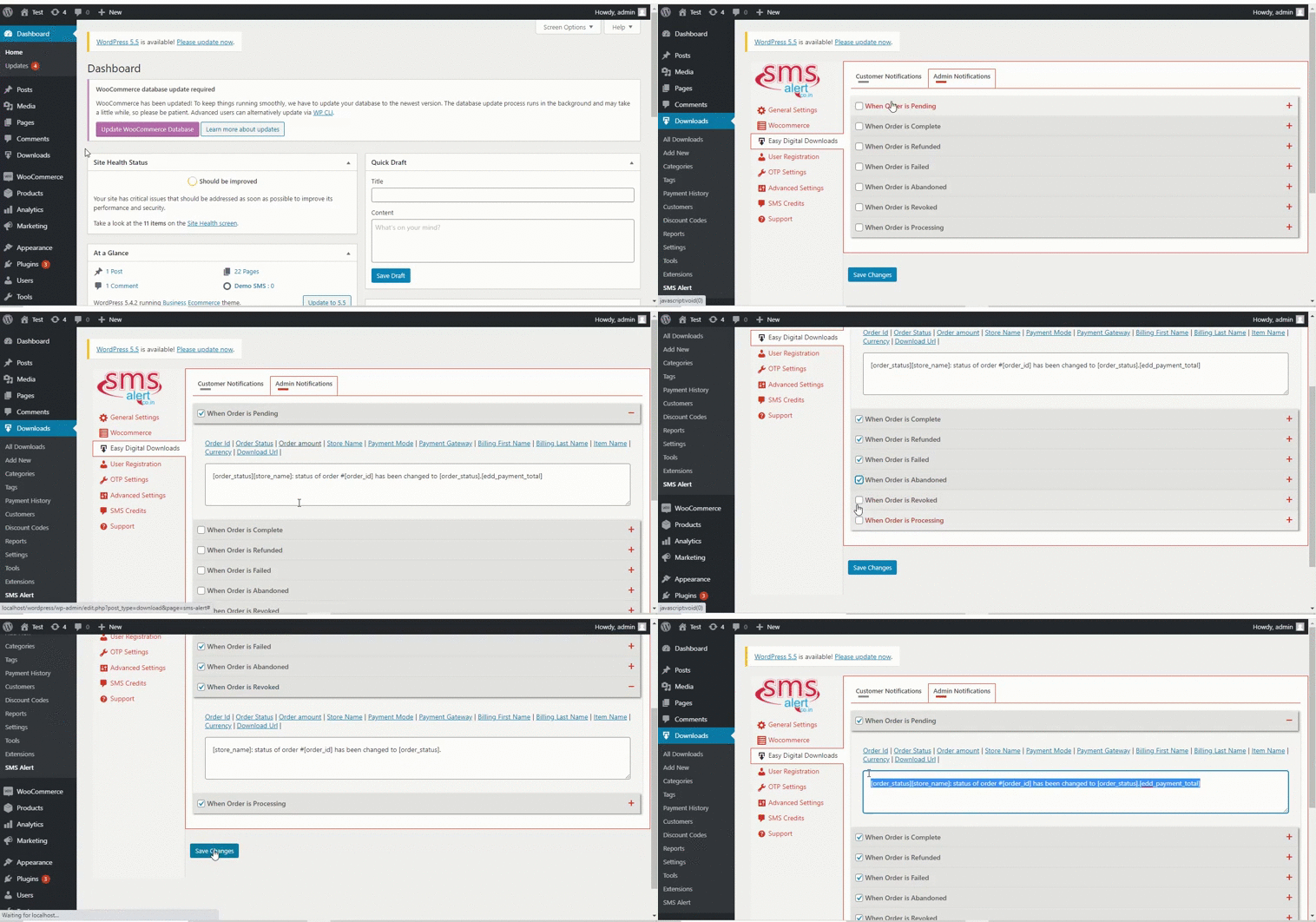
- Click on SMS Alert in menu (under Downloads)
- Navigate to EDD Cust. Templates
- Enable All/desired events on which you wish to send SMS to customer
- Modify the SMS Content as desired, use variable tokens as required, by clicking on it
- Scroll down and click on save changes

Notification to Admin
- Click on SMS Alert in the menu (under Downloads)
- In General Settings, add your number in “Send Admin SMS To” field, you can add multiple numbers here
- Then Navigate to EDD Admin Templates
- Enable All/desired events on which you wish to receive SMS notifications
- Modify the SMS Content as desired, use variable tokens as required, by clicking on it
- Scroll down and click on save changes
FAQ’S
1. What does this integration allow me to do?
It lets you send **SMS notifications** to both **customers** and **admins** when key events happen in your **EDD store**.
2. Where do I configure customer SMS notifications for EDD?
1. In the WordPress admin, go to **SMS Alert → (under Downloads)**.
2. Navigate to the **“EDD Cust. Templates”** section.
3. **Enable the desired event(s)** for which you want to send SMS to the customer.
4. **Modify the SMS content** as you like, using variable tokens if supported.
5. **Save changes**.3. How do I set up admin SMS notifications for EDD?
1. In the SMS Alert menu, go to **General Settings** and add your mobile number(s) in the **“Send Admin SMS To”** field.
2. Then navigate to **“EDD Admin Templates”**.
3. **Enable the admin notifications** you want.
4. **Modify the message templates** for admin notifications, using variable tokens as needed.
5. **Save changes**.4. What are “variable tokens” in the SMS templates?
Variable tokens are **placeholders** (e.g., customer name, order number) in your SMS message templates which get replaced by **real values** pulled from the EDD event data when the SMS is sent.
5. Which events can trigger SMS notifications in EDD via this integration?
You can enable **“All/desired events”** for both customer and admin templates. Typical events would likely include **purchase/download completion, refund, or cancellation**, but you must check your plugin settings for the exact list.
6. What should I check if SMS notifications aren’t working?
Troubleshooting steps include:
– Ensure the **SMS Alert plugin is installed, activated, and configured** (credentials, balance).
– In the EDD SMS settings, ensure you have **enabled the correct events** and **saved your templates**.
– For admin messages, ensure your **admin mobile numbers are correctly entered** in “Send Admin SMS To”.
– Confirm the **customer’s mobile number is captured** and in the **correct format**.
– Check **SMS logs** or debug info for error entries.7. Are there any special considerations or limitations noted?
Key considerations are:
– The article is short; **check separately for features like mobile verification/OTP**.
– Verify **compatibility** between your EDD version and the SMS Alert plugin.
– Plan your messaging to **avoid unnecessary SMS** charges.
– For Indian users: ensure compliance with local regulations (**DLT, sender ID**).